



Workshops and training
Turn interactive presentations into practical discussion. Poll the room, share photos of group work and choose an example to explore together.
Audience chat
Turn “Any questions?” into a conversation. Let people ask, vote and share ideas from their seats — then bring the contributions you choose onto the big screen.
One QR code or link. No app or registration for your audience.

Put your chat’s QR code on screen and invite everyone to scan. Remote attendees can use the same public link. A welcome message tells them what to do next.
Start with a question you actually want answered: “What would you like to leave with today?” Acknowledge the replies, and let the room help shape the session.
People can write messages, share images and files, or use Share to invite someone else. The conversation opens in their browser.
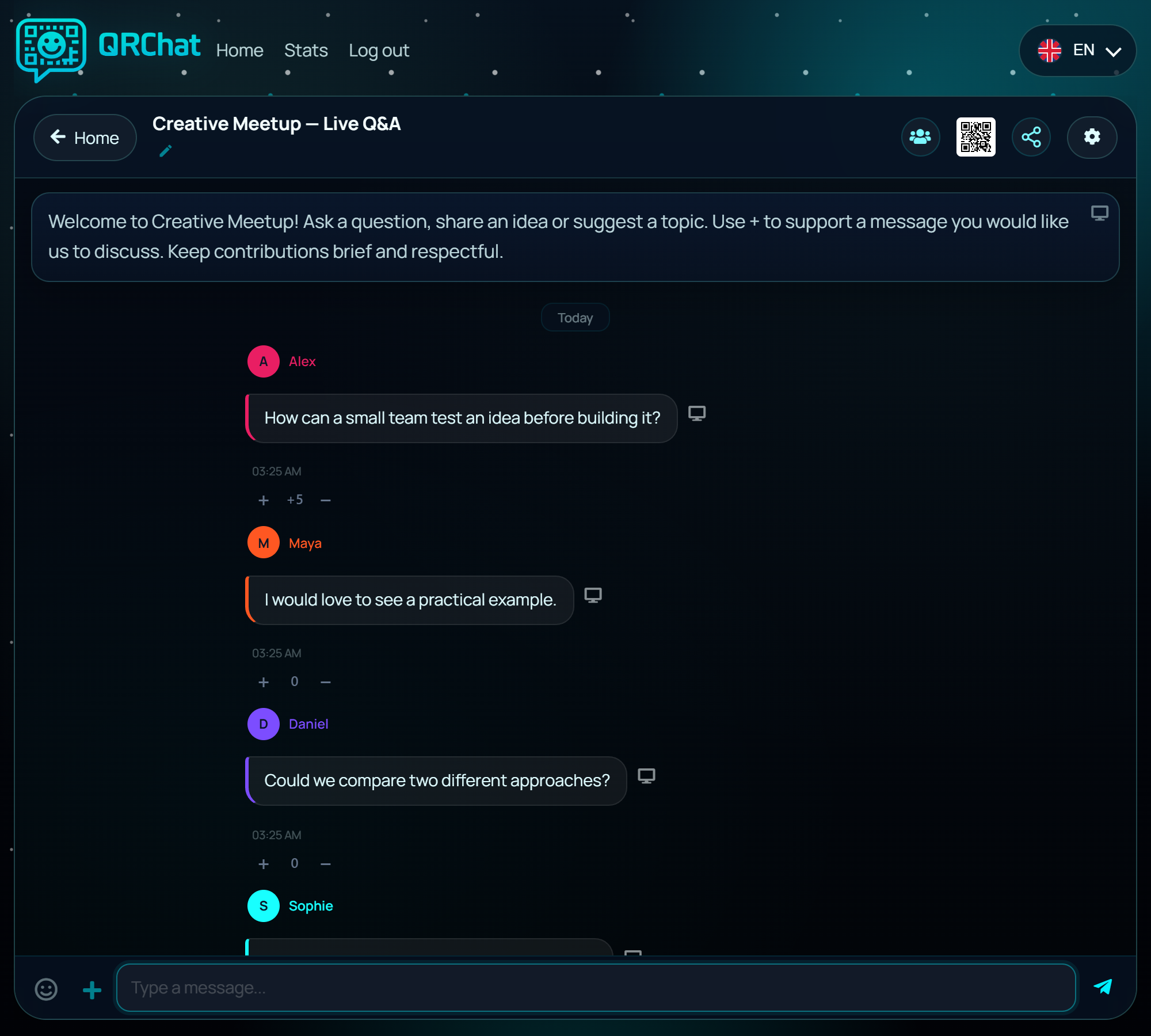
Choose the mode that helps your audience feel comfortable taking part.
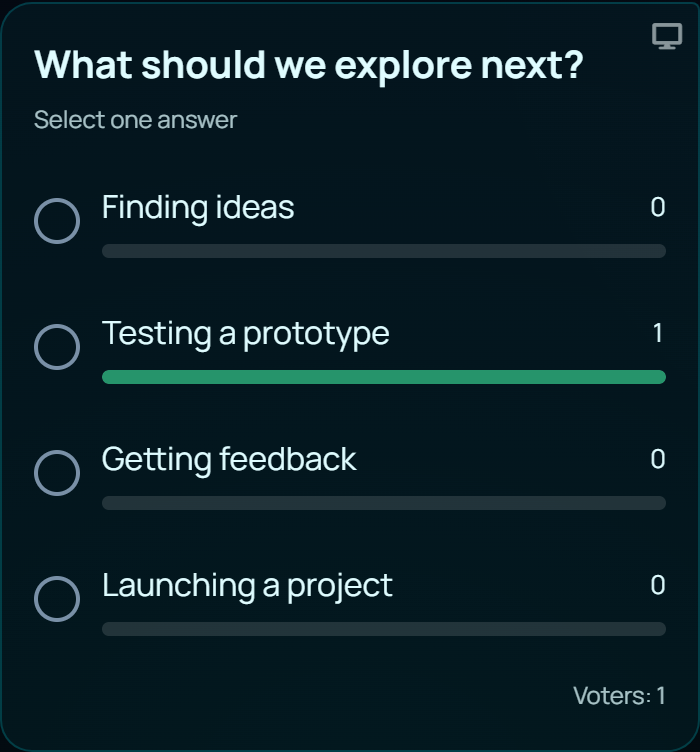
Which example should we explore? What should the next scene be? Let the audience decide.
In Group mode, anyone can send a poll into the chat. Choose one answer or allow several; response bars update as votes arrive. Several polls can live alongside the conversation.
For live Q&A, ask people to add a + to a question they share. A − lowers its score. Votes can be changed or withdrawn. The feed stays chronological, and the host decides what to address.
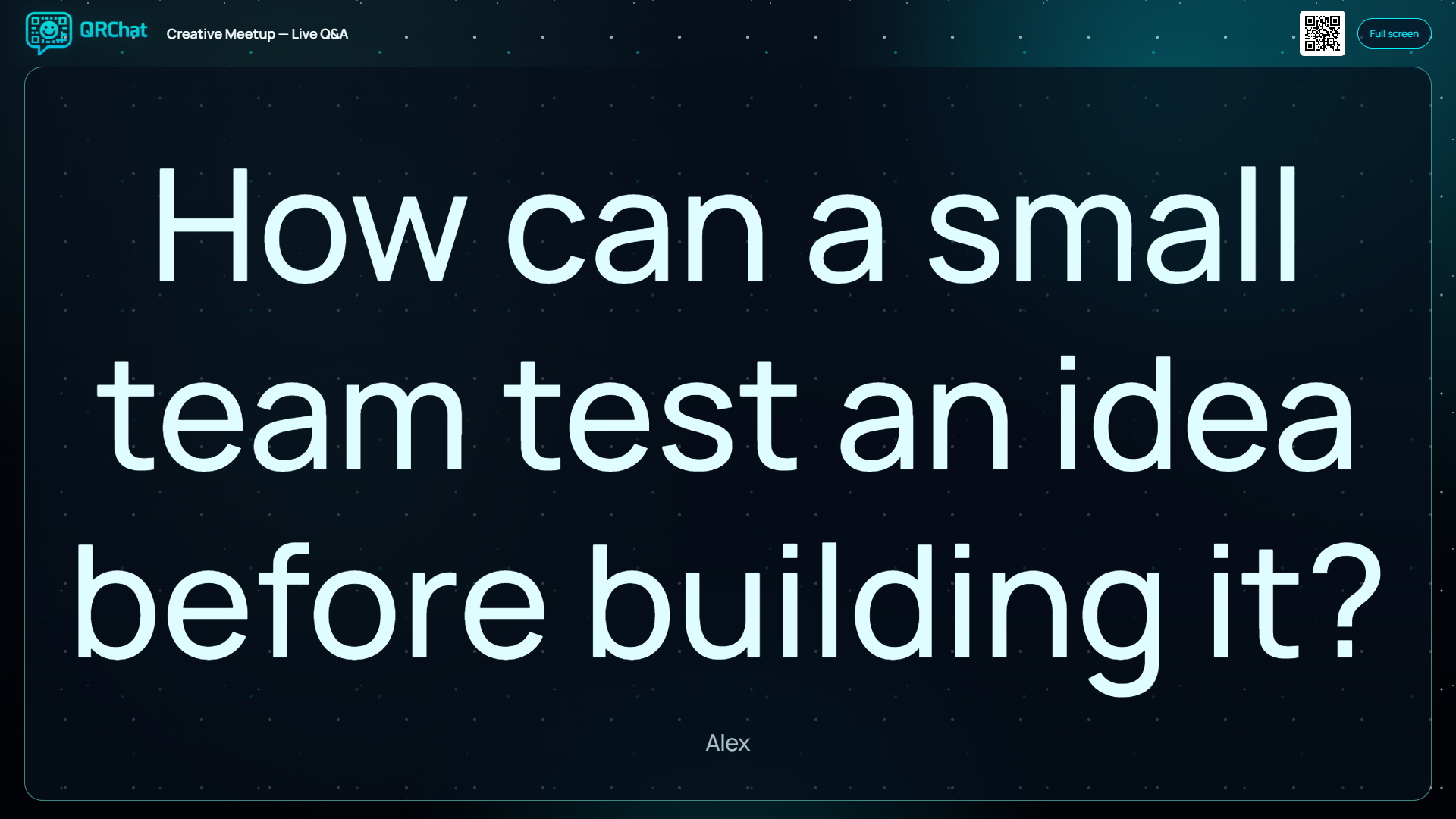
Administrators click the monitor beside a message to open it in a separate browser window. Move that window onto a connected display or projector, then go full screen.
Choose another message and it replaces the content in the same window. Present questions, images, the welcome message or live poll results. Text adjusts to the available space.
The small QR code in the header expands into “Scan to join” for late arrivals. On mobile, presentation opens inside the chat.
Individual mode gives quiet or sensitive questions a route to the host. A participant can submit without giving their name; other attendees cannot see the thread.
If a question would help the room, the host can select just that message for presentation. The rest of the conversation stays private. Unselected questions remain between the participant and host.
Tell participants whether you may display selected questions. Anonymous means no real name is required; private means other attendees cannot read the conversation.

Turn interactive presentations into practical discussion. Poll the room, share photos of group work and choose an example to explore together.

Collect questions throughout a talk, or invite the audience to suggest a place, character or topic for the next scene.

Give the room a QR code and remote participants a link. Include selected questions in your screen-sharing or streaming setup.
Follow the browser walkthrough, then use the step-by-step guide to prepare your own event.
Open the setup guide: create, customise and run your Audience chatNo. They scan the QR code or open the public link in a browser. Internet access is required. The organiser signs in to create and manage the chat.
Only administrators have presentation controls. Participants can contribute to the conversation; the host chooses what the room sees.
Polls and ratings belong to Group Audience chats. Individual mode is for separate conversations with the host, with selective presentation of messages.
Keep your slides. Use Audience chat alongside them to collect contributions, answer questions and give attendees a way to influence the session.
Create the chat. Ask one useful question. Let the conversation begin.