





A selfie worth sharing
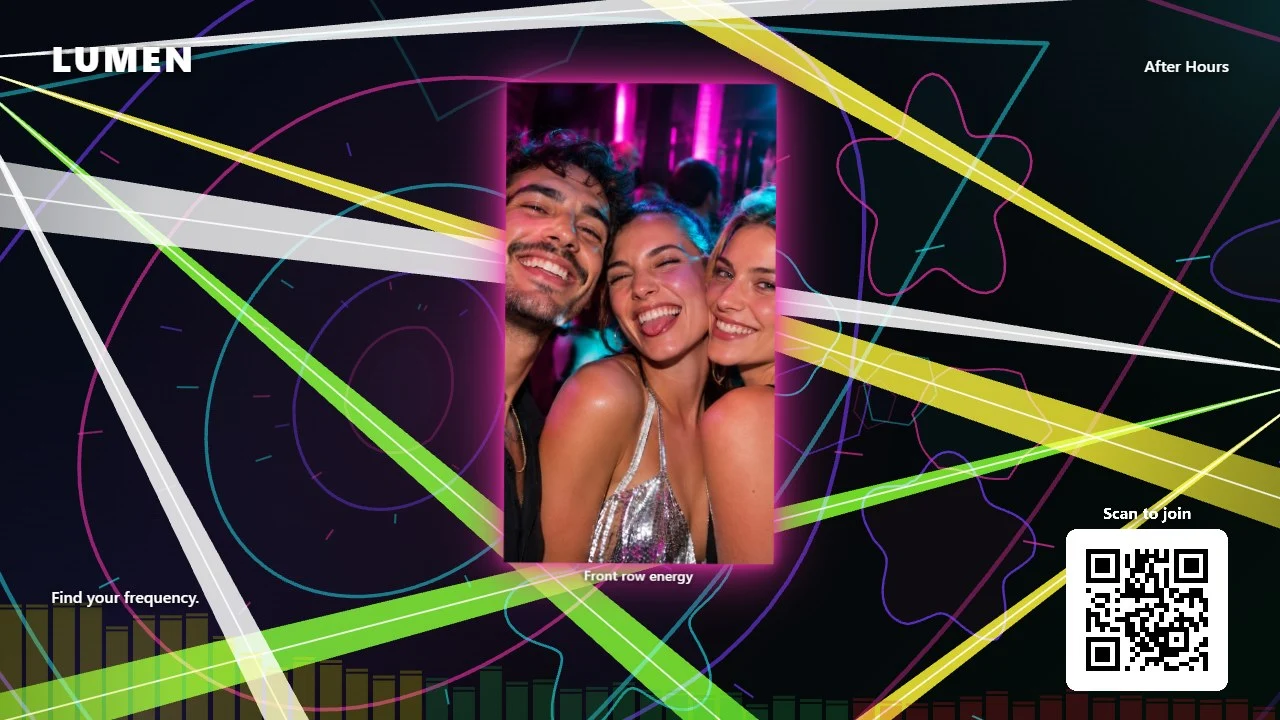
Three friends send their selfie to the live chat. When it fills the club screen, they film it for their Stories. LUMEN, the club’s name, is right there above their photo.
Club party mode
Guests scan a QR code to join the live chat. Their messages and photos appear on the big screen alongside your club or party name. Connect the DJ’s audio and the visuals move to the beat.

Watch the short setup, then stay for a full minute of Club Live with the music on.
Three friends send their selfie to the live chat. When it fills the club screen, they film it for their Stories. LUMEN, the club’s name, is right there above their photo.
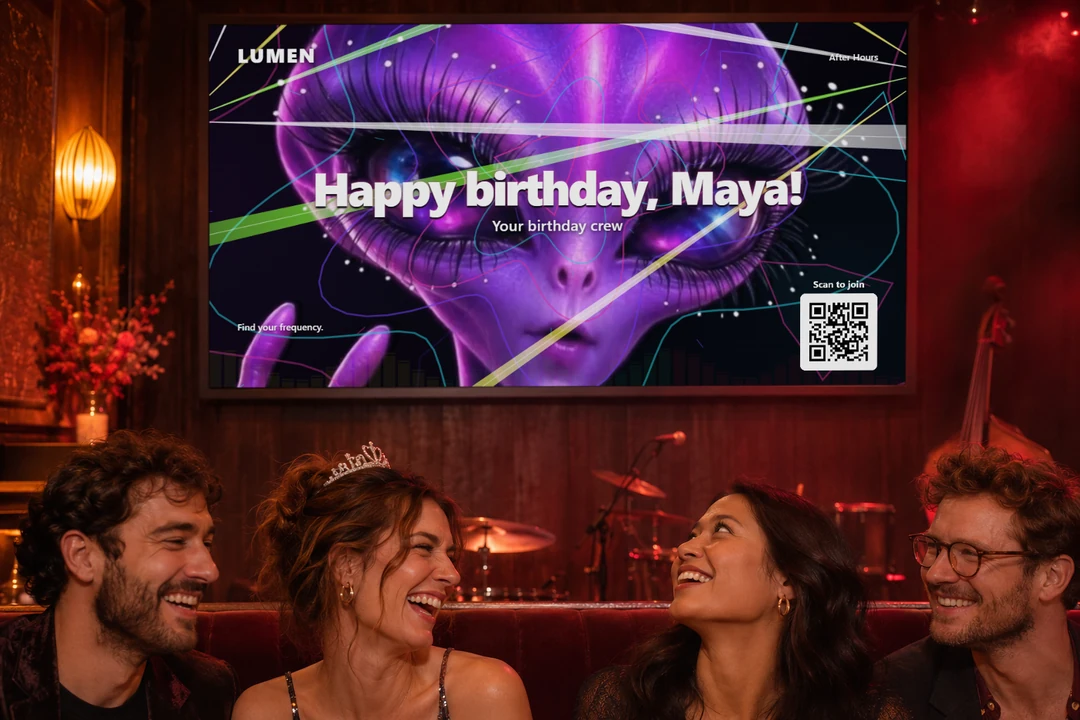
Maya’s friends send a birthday wish from their table. It appears above the dance floor just as they point it out to her.
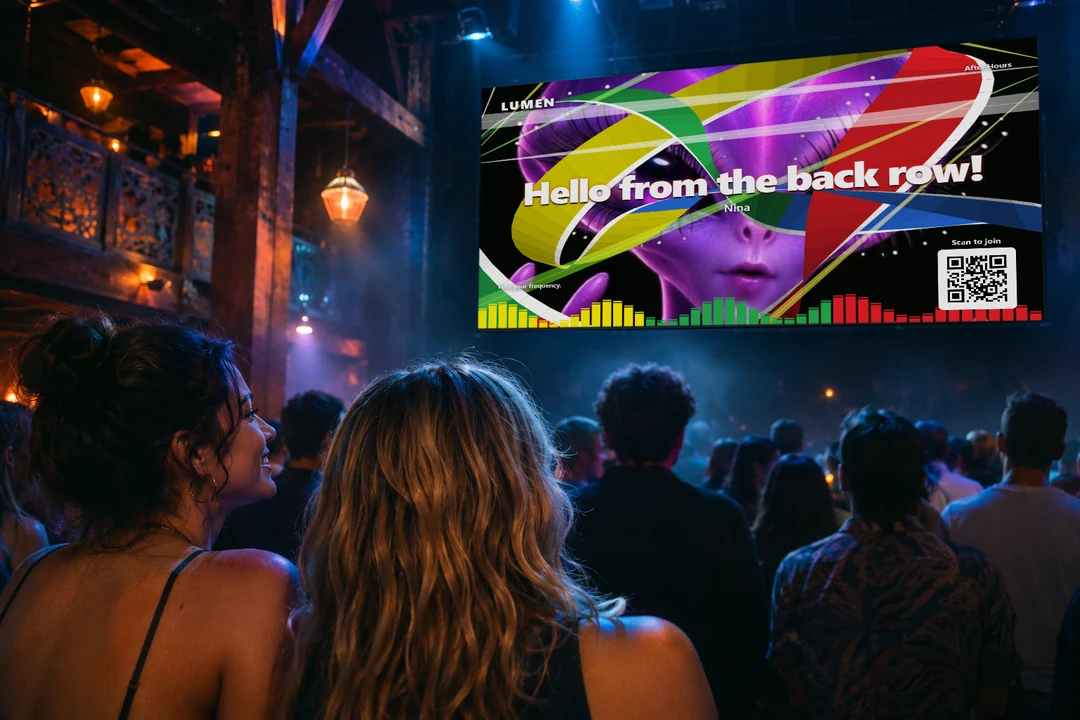
A guest waves to friends by the DJ booth and sends a hello from the back of the room. The message goes up on screen, and the front row waves back.
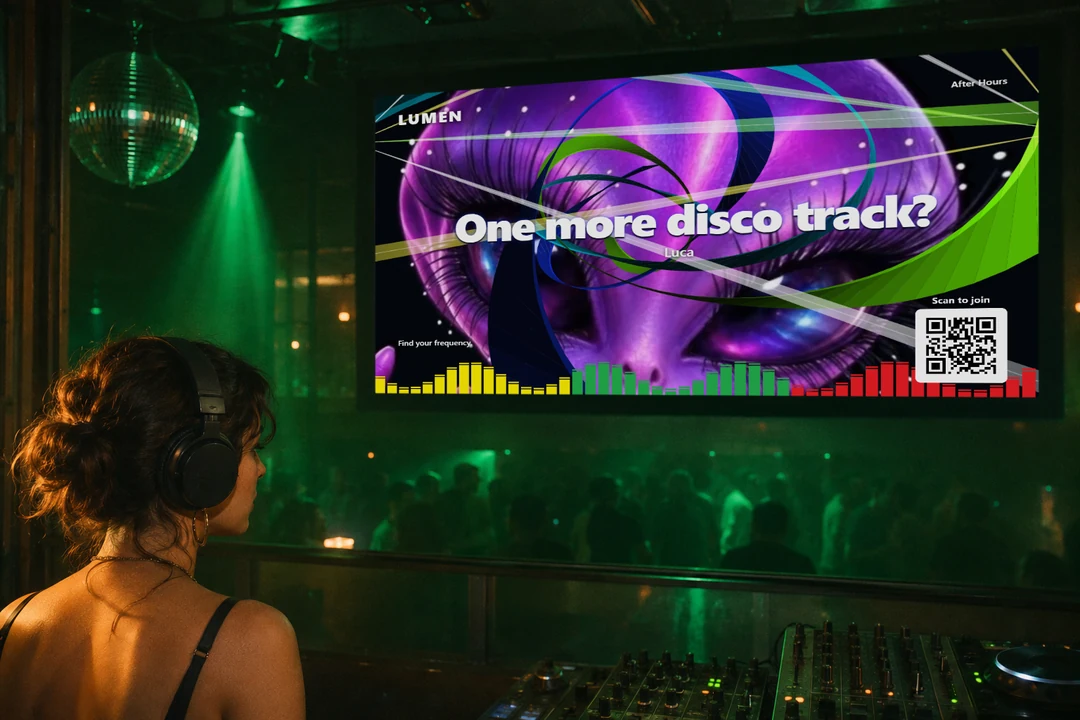
Someone in the crowd asks for one last disco track in the chat. The DJ spots the request on screen and decides what to cue next.


Before the first guest posts, invite the room to request a track or scan the QR code. Your words scroll across the top or bottom of every scene. Choose continuous or periodic display, save your text and enable the line. Disable it at any time and enable it again to bring it back with the same settings.
Give the next DJ, a birthday shout-out or a drink special a few seconds in the center of the screen. Add a card for each announcement and choose its text color, display time and pause. Show a card now or rotate the saved cards automatically. Disable a card to skip it until you need it again.
When a group selfie appears above the dance floor, friends have a reason to cheer, take a video and share it. Keep your club and party name on screen so their followers can see where the night happened. Those clips can introduce the next party to new guests, without an ad spend.
Yes. Before guests start posting, choose manual review in the DJ panel. New guest messages and photos wait in the review queue. Open it to approve a post for the chat and party screen or reject it.
Choose AI review to check incoming posts automatically. Posts that pass can appear on screen. If a check cannot be completed, the post waits for a person to review it. With premoderation off, guests can post without waiting for your approval.
Yes. When there are no new posts, the screen cycles through up to 20 recent published messages and up to 20 recent photos from that chat. Manual review applies to new submissions. Start a fresh chat if you want the screen to show only content from tonight.
Yes. Use your projector as a second display. Keep the DJ panel on your laptop and open the party screen in its own window. Move that window to the projector and enter full screen, or use the display picker if your browser offers it.
No. They scan the QR code or open the public link in a browser. Internet access is required. The organiser signs in to create and manage the chat.